
iOS App · Personal Project
TrackFlow
An expense tracker built around how I actually think about money — fast to log, honest about patterns, and out of the way the rest of the time.

What's New in 2.2
- One-sentence entry: type "lunch 35" and the amount and category fill in
- Ask: look up your spending with a question
- A written recap for every report period
- Subscriptions with renewal and free-trial reminders
- Siri, Shortcuts, Spotlight and a Control Center quick-log control
- A new navy theme and a better iPad entry screen
Screenshots
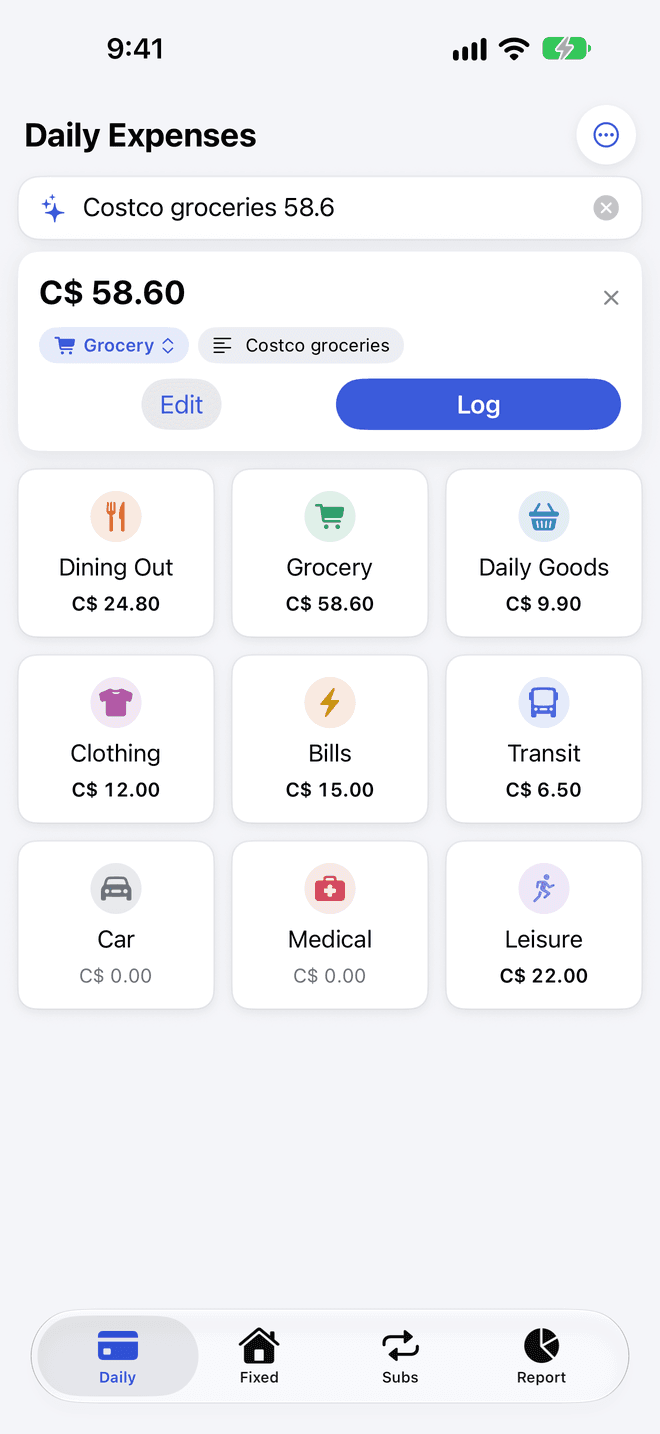
One-sentence entry
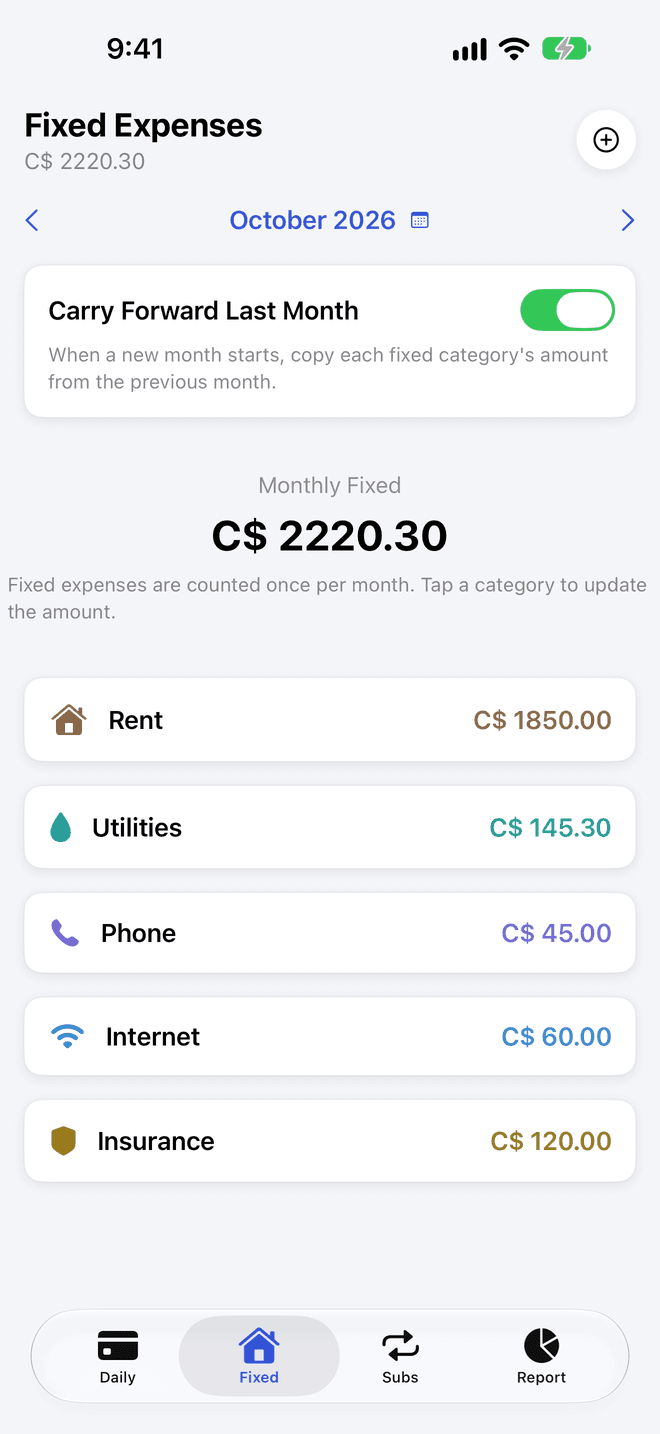
Fixed Expenses
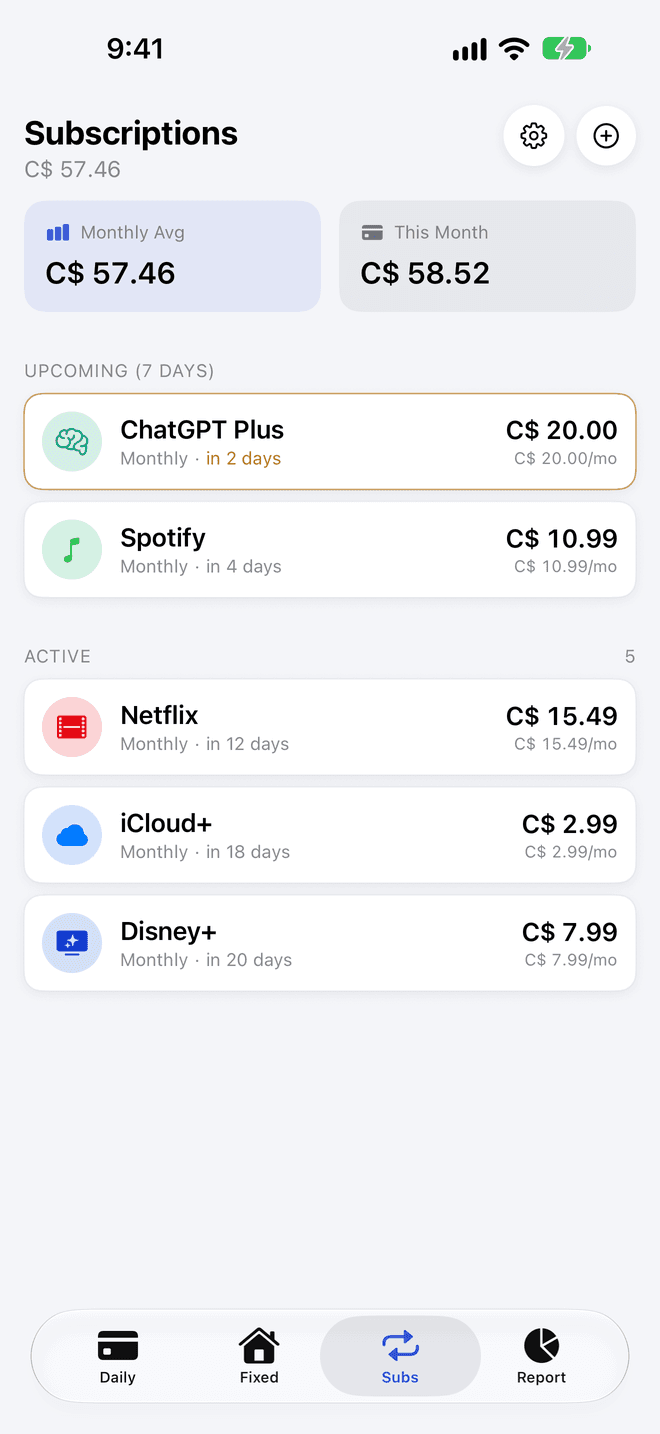
Subscriptions
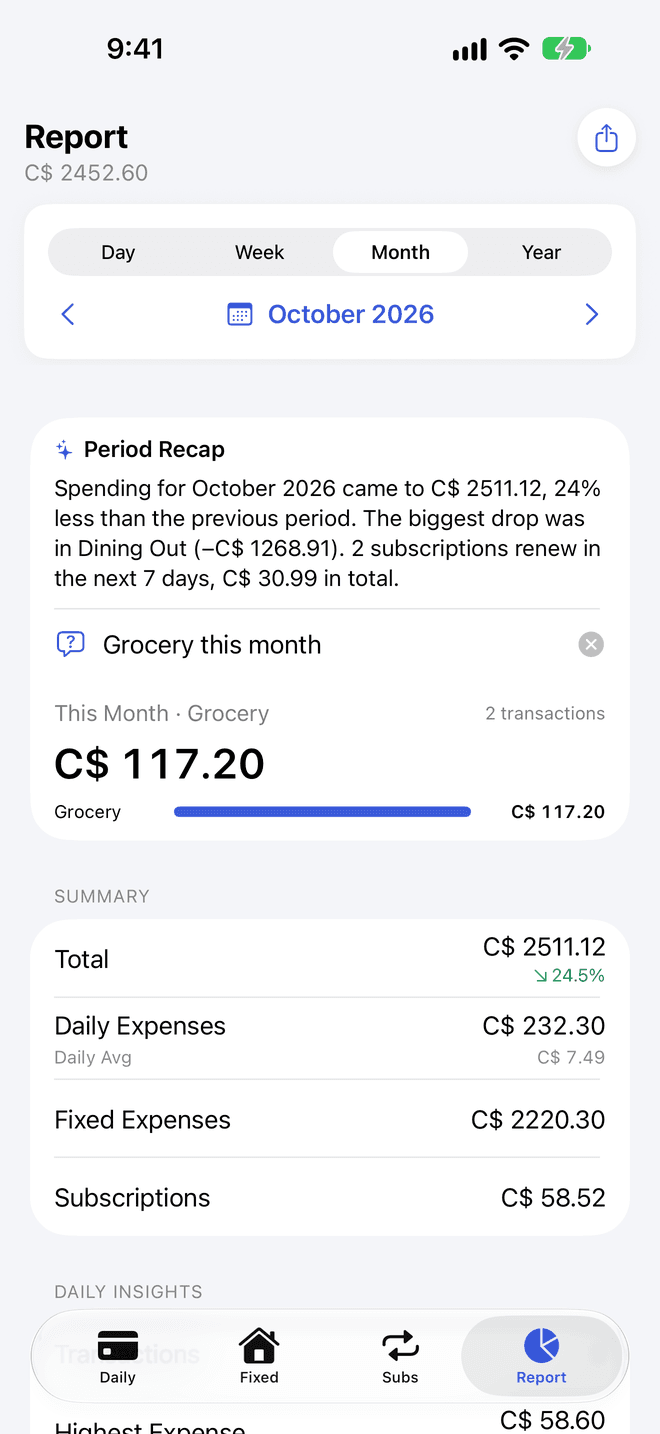
Recap & Ask
Why I Built It
"Most expense apps try to do too much."
They surface charts you never look at, demand categories that don't match how you spend, and make the core action — logging a purchase — slower than it needs to be.
TrackFlow is built around one principle: capture first, understand later. The home screen is a grid of categories. You tap one, enter the amount, and you're done. Under three seconds.
Version 2.2 makes capture even shorter: type one sentence and TrackFlow fills in the rest. Smart Suggestions run on the device with Apple Intelligence, and every suggestion is checked against what you typed before you confirm it.
The reporting is intentionally minimal — enough to see where the money went, not enough to turn into another thing you have to manage.
Features
One-sentence entry
Type, dictate or paste a sentence like "Costco groceries 58.6". The amount, category and note fill in, and nothing is saved until you confirm.
Recap & Ask
Every report period gets a short written recap. Ask "Grocery this month" and the answer is computed from your own ledger.
Subscriptions
Every subscription in one place with its monthly total. Reminders three days before a renewal, on the day, and two days before a free trial ends.
Two-track budgeting
Separate daily spending from fixed monthly costs. Know your variable burn rate without your rent muddying the picture.
Built-in calculator
Tap a category and enter amounts as expressions — type 12.5 + 8 and TrackFlow does the math.
Carry forward fixed costs
Rent and bills that don't change? Turn on Carry Forward Last Month and they roll into each new month.
Receipt scanner
Take or choose a photo of a receipt. The amount, merchant and date are read on-device and filled in for you to check.
Siri & Shortcuts
Say "Log an expense in TrackFlow", log from a sentence or an image in Shortcuts, or ask Siri for your spending and upcoming renewals.
Reports & export
Charts by day, week, month or year; tap a category to see its entries. Export a PDF report or a CSV, and import past records from a CSV template.
Widgets & Control Center
Home Screen widgets show the month at a glance and can start an entry from a category. A Control Center control logs an expense from anywhere.
Multiple currencies
Pick a base currency (C$ by default) and set your own exchange rates for expenses in other currencies.
iCloud sync
Data syncs privately across your Apple devices via CloudKit. Falls back to local storage if iCloud is unavailable.
Stack
Language
Swift
UI
SwiftUI
Storage
SwiftData + CloudKit
On-device AI
Foundation Models
Siri & Shortcuts
App Intents
OCR
Apple Vision
Widget
WidgetKit
Platform
iOS 26+ · iPhone & iPad
How to Use
01
Log in one sentence
On the Daily tab, type or dictate into the bar at the top — "lunch 35" or "Costco groceries 58.6". Check the amount and category on the card that appears, then tap Log.
02
Or tap a category
Tap any category tile and enter the amount with the built-in calculator — expressions like 12 + 8 work. Add an optional note, confirm the date, and tap Save.
03
Track fixed monthly costs
Switch to the Fixed tab and tap a category to enter this month's amount. Turn on Carry Forward Last Month to roll the figures into each new month.
04
Add your subscriptions
Open the Subs tab and tap +. Pick a template or fill in the name, price and cycle. Allow notifications to get reminders before renewals and before free trials end.
05
Scan a receipt
Tap the scan icon at the right end of the Daily tab's sentence bar. Take or choose a photo — the amount, merchant and date are filled in for you to check.
06
Read the recap, ask a question
Open the Report tab and choose day, week, month or year. Read the period recap, or type a question like "Grocery this month" into the Ask bar. The share icon exports a PDF or CSV.
07
Use Siri, widgets and Control Center
Say "Log an expense in TrackFlow". Add the widget from the Home Screen, or the quick-log control in Control Center. The Daily tab's ⋯ menu has a Siri & Automations guide.
08
Import historical data
Tap ⋯ → Download CSV Template to get the correct format. Fill it in with past expenses, then tap ⋯ → Import Data to load them all at once.
Privacy
Data collected
TrackFlow does not collect, transmit, or share any data with the developer or third parties. No account. No analytics. No advertising. No tracking.
Smart Suggestions
On devices with Apple Intelligence, suggestions use Apple's on-device foundation model. Nothing you enter is sent to the developer or to any third-party AI service. Turn them off in Settings and the app uses its built-in rules only.
iCloud sync
Expense data is synced privately across your Apple devices using CloudKit (iCloud private database). This data is accessible only to you and is governed by Apple's iCloud privacy policy. If iCloud is unavailable, the app falls back to local storage automatically.
Camera & Photo Library
Camera and photo library access is used solely for the receipt scanner. Images are processed entirely on-device. No images are stored or transmitted.
Data deletion
All data can be deleted at any time from the Daily tab → ⋯ menu → Reset Data. Deleting the app removes all local data. iCloud data can be managed via iOS Settings → [Your Name] → iCloud → Manage Account Storage.
App Store Privacy Label
Available on the App Store in English and Chinese. Built and maintained for daily personal use. Version 2.2 (October 2026) adds one-sentence entry, Ask, period recaps, subscription reminders, and Siri and Shortcuts support.